
Make This Year Special & Unforgettable.
Bind Your Children’s School Memories into a Book!

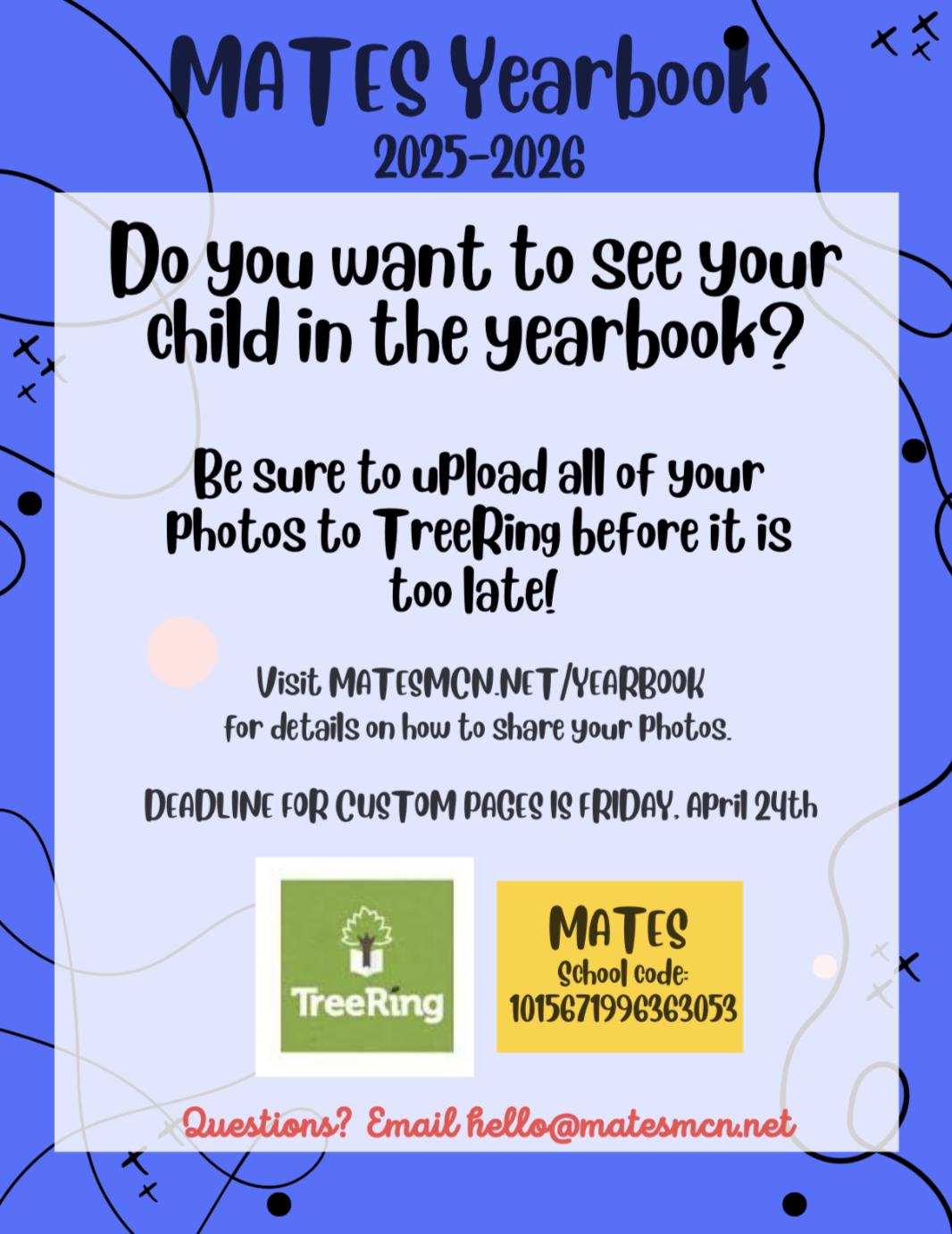
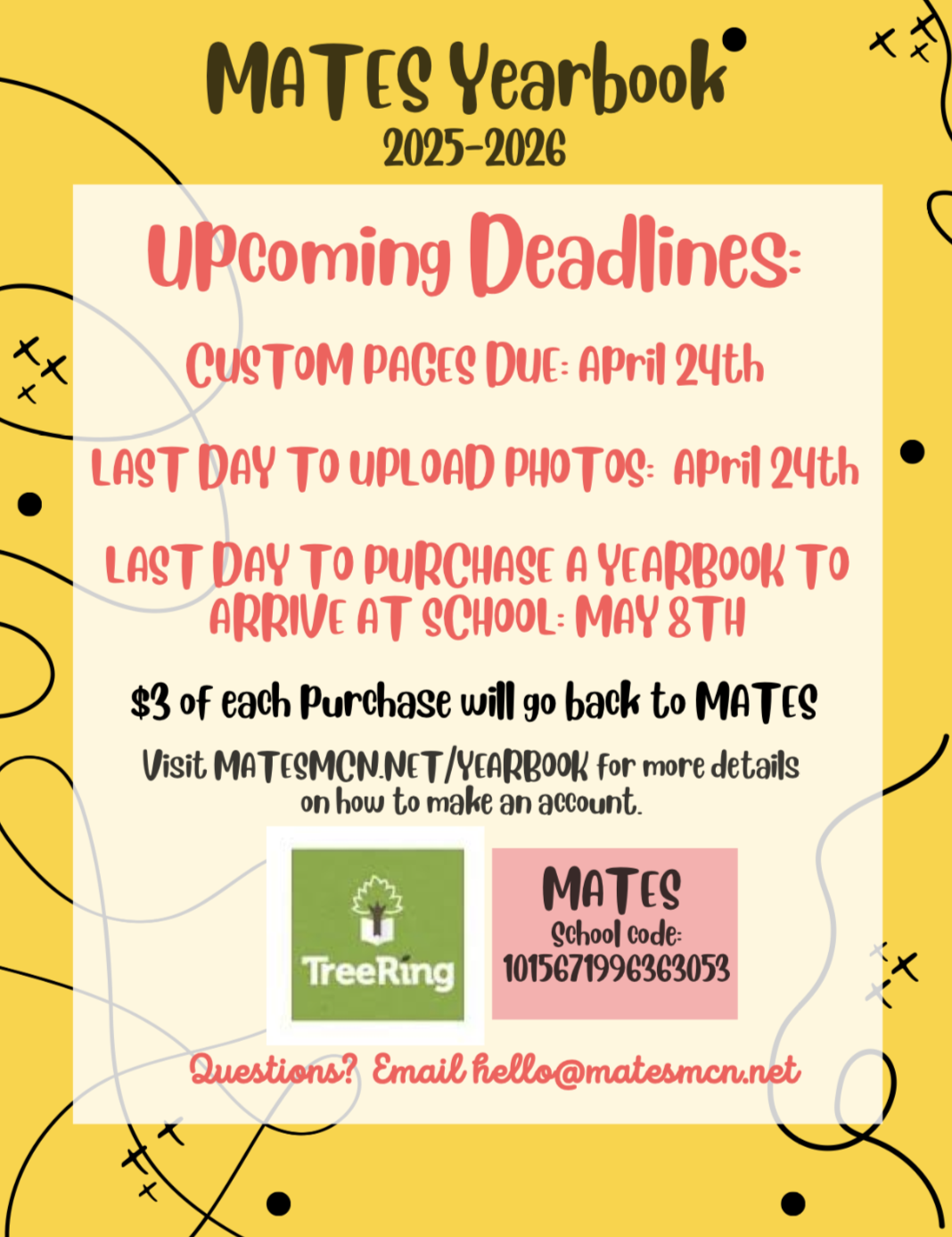
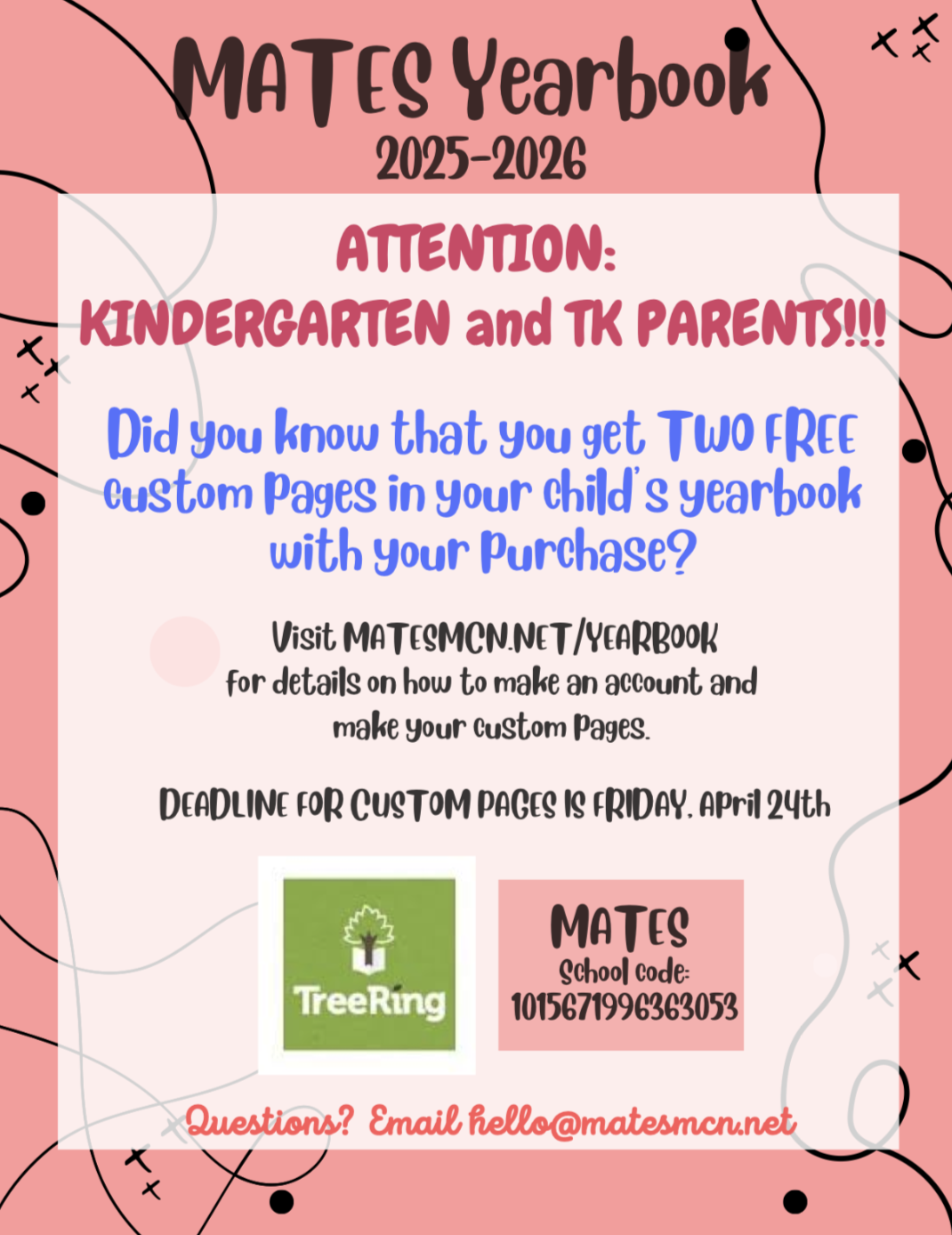
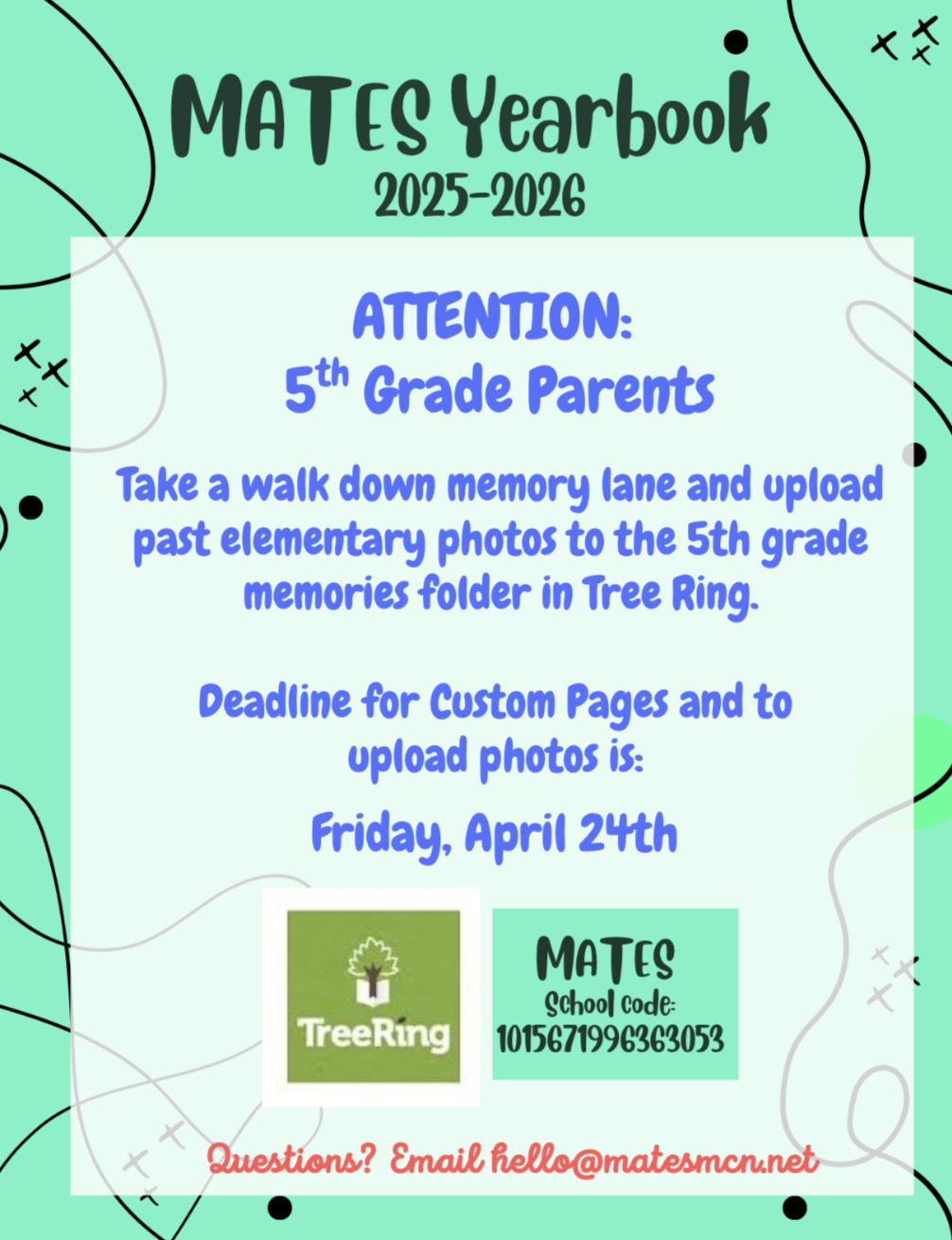
Don’t miss out, and note all these deadlines!
April 24th: Custom Pages Due
Use your 2 free pages! (scroll down the page to see the tutorial)
April 24th: Last Day to Upload Photos
May 8th: Last Day to Purchase a Yearbook to Arrive at School
Keep all your child(ren)’s MATES memories forever!
Don’t forget to upload photos for your yearbook.
$3 of each purchase goes back to MATES when you purchase your yearbook.
(MATES School Code: 1015671996363053)
* Yearbooks are only available for purchase through TreeRing. There will be no books available at the school for purchase.
* You may purchase your yearbook at anytime, but orders placed late will be shipped separately and will incur additional shipping costs.
How to Navigate Treering and Build Your Custom Pages:

Purchase or customize your Yearbook. 
Add photos or try the Page Editor. 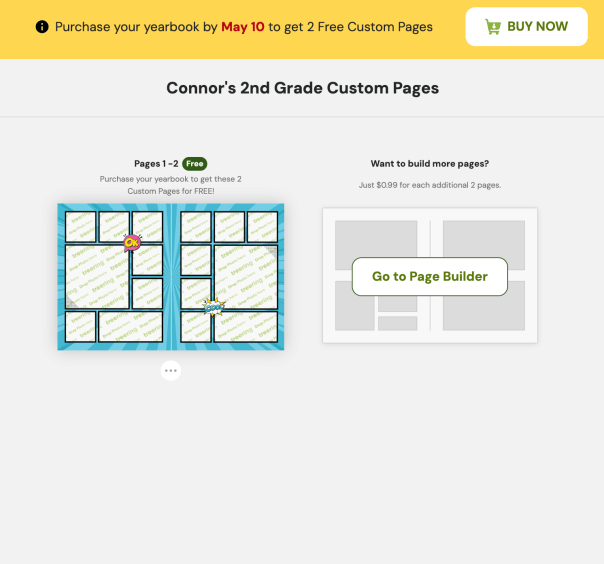
Don’t forget to finish your two free Custom Pages! 
Drag and drop photos here. 
Click a square and click MORE… 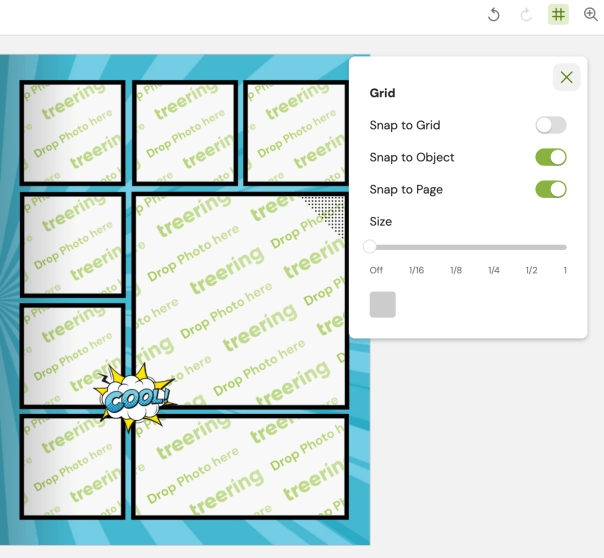
Click # to open Grid options 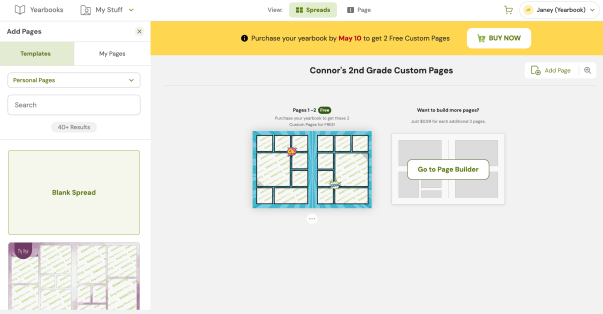
Add more pages 
Page View 
Spreads View 
Quick Tip 1 
Quick Tip 2 
Don’t forget to share school photos! 
You may also purchase older yearbooks.
Help Create Memories for Your Child.
Click here to upload photos or purchase a yearbook.
(MATES School Code: 1015671996363053)

Below are some resources to help you get the best use of the TreeRing website. Click the links below to go to each section.
Creating an Account
Changing the Shipping Address on Your Order
Sharing Photos
Creating Custom Pages
Send and Request Signatures
Tips and Tricks Video
If you have any further questions, please email us at Hello@MatesMCN.net
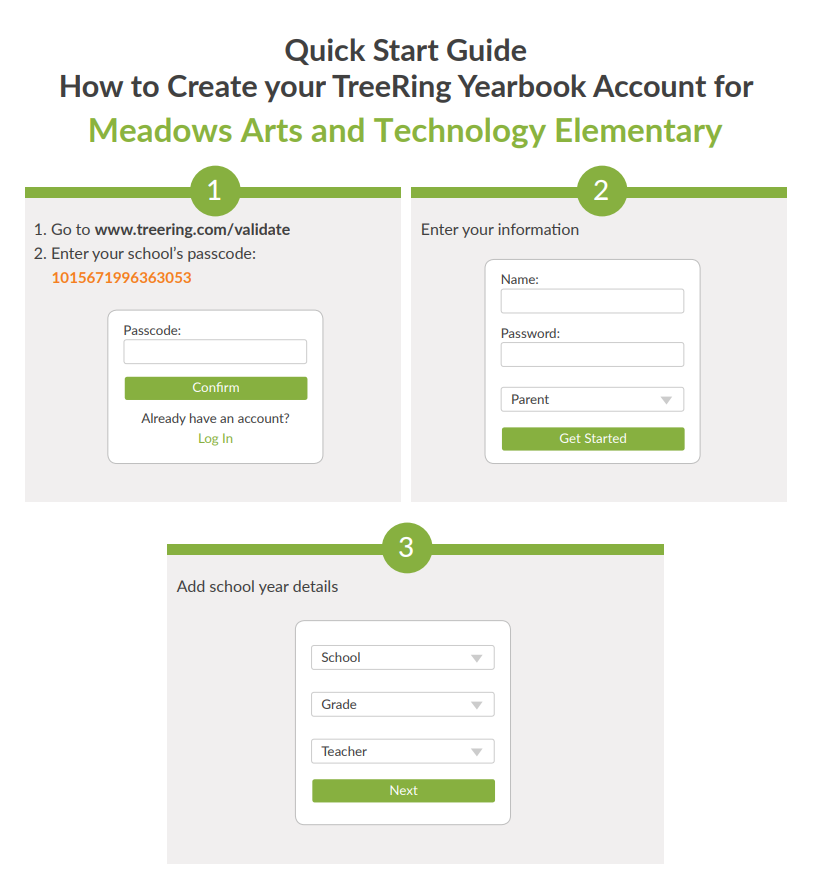
To create a TreeRing account:
- Go to www.TreeRing.com/validate
- Enter MATES school code: 1015671996363053
- Enter your information to create your account
To change the shipping address on your order:
- Click on My Orders on the left side navigation menu
- Click on the Order Number
- Note: if you have more than one order, you will need to update each order
- Under the Order Details, click on Edit Address
- Update the address as needed, and click Verify Address
- Select Use Original Address or Use Suggested Address
- Note: we advise that you use the USPS Suggested Address to eliminate delivery issues
- You may also go back to edit your Original Address by clicking on Edit
- Order Details will now display the updated address
To share photos that the Yearbook Committee may then use in designing the Yearbook:
- Click on Shared Photos on the left side navigation menu
- Click on Shared Photo Folders
- Select the folder to which you would like to upload photos
- Click on Add Photos

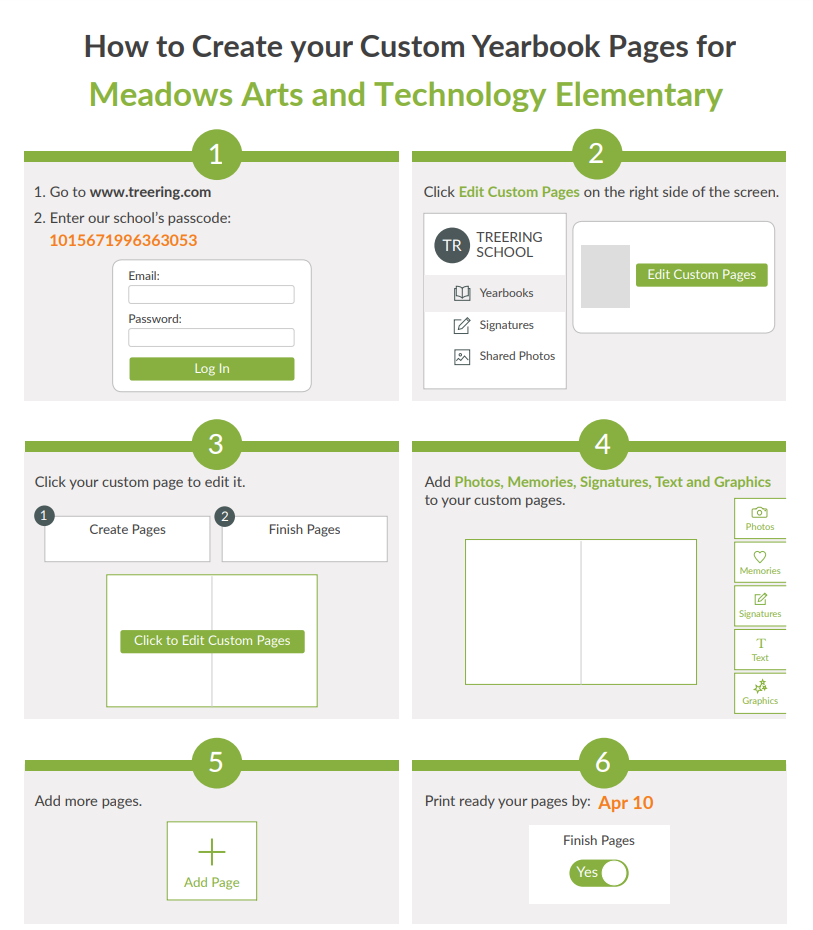
Each yearbook comes with 2 free custom pages!
- Log in to your TreeRing account
- Click Edit Custom Pages of the right side of the screen
- Click on your custom page to edit it
Please Note: This is where you will place the digital signatures set to you by friends. Click the Signatures button located on the right hand side of the page editing window.
To send signatures:
- Click the Signatures button on the left hand side
- Click Send
- If you have more than one child, select who is sending the signature from the drop down
- Type in the name of the person receiving the signature and click on their name
- Please Note: If you cannot find the person you are looking for, they may not have a TreeRing account yet — Ask them to set one up!
- You can add photos or stickers by clicking on the corresponding buttons, and type your message in the box
- When you are done with your signature, click Add
- Review your signature, and click I Approve this Signature when you are happy with it
- Click Send to send your signature
To request signatures:
- Click the Signatures button on the left hand side
- Click Request
- Type in the name of the person you would like to request the signature from and click on their name
- Please Note: If you cannot find the person you are looking for, they may not have a TreeRing account yet — Ask them to set one up!
- Click Send to request a signature
The video below will show you some tips for customizing your pages as well as sending and using signatures:














 MATES Community Network